



Looking for an internet connection problems fix? Whether your Wi-Fi says “connected, no internet,” websites won’t load, or your connection keeps dropping, this guide walks you through 12 practical solutions to get back online.
To fix an internet connection problem, check for an ISP outage, test another device, restart your modem and router, and compare Wi-Fi with Ethernet. If only one device is affected, focus on its network settings rather than resetting your entire home network.
This step-by-step guide covers 12 internet connection fixes for home networks, Windows 11, Mac, iPhone, and Android. For other technology issues, explore our Tech Fixes & Troubleshooting Guide.
Quick Fix: Get Your Internet Working Again
Try these five checks before moving to advanced troubleshooting:
- Check your ISP: Use cellular data to check your provider’s outage status.
- Test another device: See whether the same problem affects your phone, laptop, or tablet.
- Reconnect Wi-Fi: Confirm Airplane Mode is off and reconnect to the correct network.
- Restart your router: Power-cycle your modem and router, then allow them to reconnect.
- Try Ethernet: If a wired connection works, investigate your wireless network.
Important: Restarting equipment is different from factory-resetting it. Avoid a factory reset because it can erase your network settings.
Internet Problem Checker
Select your connection problem to find the right first step.
Possible cause
Your device may be connected to the router, but the router may not have working internet access.
What to do first
Check another device, confirm your ISP’s outage status, and inspect the modem’s online light.
Start with Fix #1 and Fix #4.Diagnostic guidance only. Results are not a confirmed fault diagnosis.
12 Internet Connection Problems Fixes
Follow these solutions in order. Test your connection after each step so you know which change resolves the issue.
1. Check for an ISP Outage
If every device suddenly loses internet access, start with your internet service provider (ISP).
Use mobile data to check your provider’s official outage page or app. Major US providers such as Xfinity, Spectrum, AT&T, and Verizon offer customer support tools for investigating service interruptions.
If an outage is confirmed, avoid unnecessary changes to your network. Wait for the provider to restore service and check its official updates.
Best for: Internet outages affecting multiple devices.
2. Test Another Device or Website
Connect a second device to your Wi-Fi and open several reliable websites.
If another device works normally, investigate the original device. If nothing connects, examine your modem, router, and incoming service.
When only one website fails, try another browser or check whether that website is experiencing an outage.
This simple test helps separate device-specific errors from broader network failures.
Best for: Identifying where the connection is failing.
3. Check Wi-Fi and Airplane Mode
Incorrect wireless settings can prevent a working device from connecting.
Open your network settings and confirm that:
- Wi-Fi is turned on.
- Airplane Mode is disabled.
- The correct wireless network is selected.
- Your saved Wi-Fi password is correct.
On Windows 11, go to Settings → Network & internet → Wi-Fi → Manage known networks. If necessary, select your network, choose Forget, and reconnect.
Make sure you know the password before forgetting a network.
Best for: Devices that cannot connect to Wi-Fi.
4. Inspect Cables and Router Lights
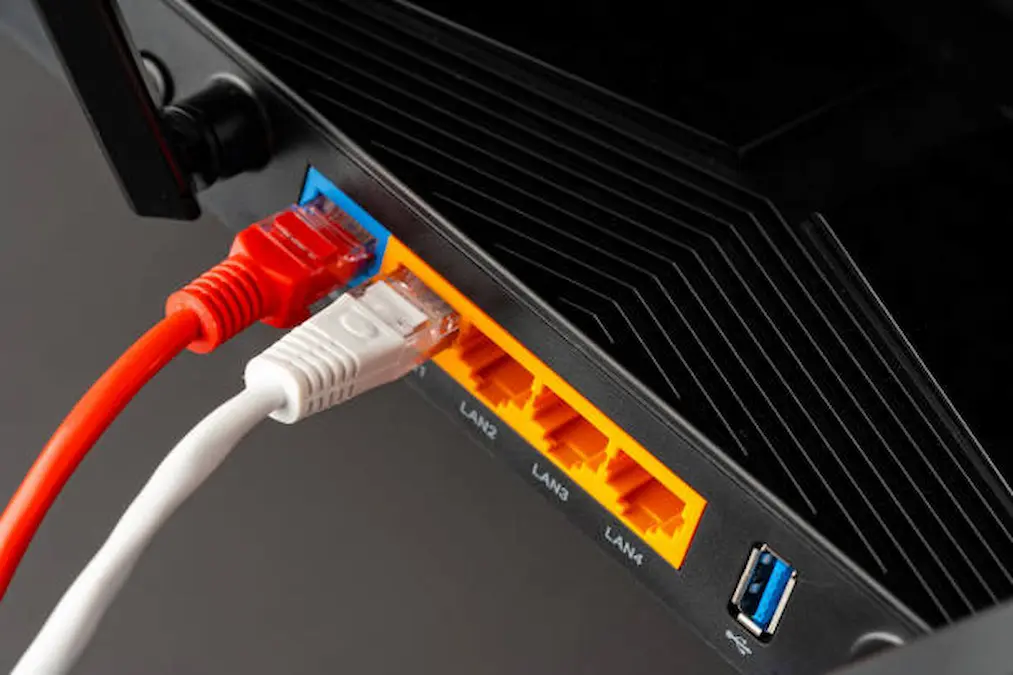
Loose connections and damaged cables can interrupt internet access even when your Wi-Fi network remains visible.
Inspect accessible power, Ethernet, coaxial, and fiber connections without forcing connectors.
Check your modem and router indicators:
| Indicator | Possible problem |
|---|---|
| Power off | No power |
| Internet/Online off | ISP or connection issue |
| Red LOS on fiber equipment | Possible optical signal loss |
| Wi-Fi off | Wireless network may be disabled |
Indicator meanings vary by device. Consult your router or ISP manual rather than assuming every red or blinking light indicates a failure.
Never look into a fiber connector or attempt to repair a damaged fiber line yourself.
Best for: Network-wide outages or abnormal equipment indicators.
5. Restart Your Modem and Router
Restarting can clear temporary connectivity problems without erasing settings.
Restart Your Modem & Router
Follow these four steps in the correct order.
Unplug Both
Disconnect the router and modem power cables.
Wait 30–60 Seconds
Allow both devices to fully power down.
Modem First
Reconnect the modem. Wait until its normal online status returns.
Router Second
Reconnect the router, wait for Wi-Fi, then test your connection.
6. Compare Wi-Fi With Ethernet
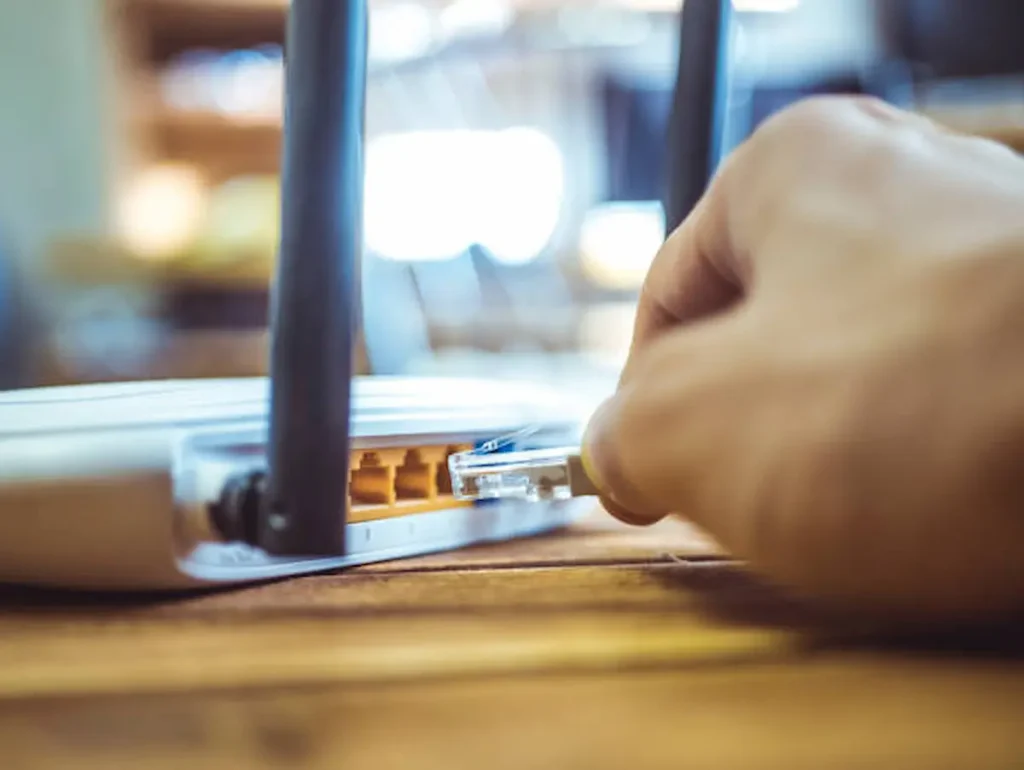
Connect a laptop or computer to your router using an Ethernet cable. Temporarily disable Wi-Fi on that computer, then test your internet connection.
Ethernet works but Wi-Fi fails: Investigate wireless coverage, interference, or Wi-Fi configuration.
Both connections fail: Check the modem, router’s internet connection, or ISP service.
A wired test through the router doesn’t eliminate every router fault, but it provides useful diagnostic evidence.
Best for: Distinguishing wireless problems from broader internet failures.
7. Improve Wi-Fi Signal and Reduce Interference
Weak signals can cause buffering, slow downloads, and dropped connections.
Try moving closer to your router and placing it in an open, central location away from thick walls and large metal objects.
You can also test another supported Wi-Fi band:
- 2.4 GHz: Typically offers greater coverage but may experience more interference.
- 5 GHz: Often provides better performance at shorter distances.
- 6 GHz: Offers additional spectrum on compatible routers and devices.
For larger homes, a properly positioned mesh Wi-Fi system may improve coverage.
Best for: Weak Wi-Fi, buffering, and room-specific connection issues.
8. Fix DNS and IP Address Problems
DNS converts domain names into IP addresses. If DNS fails, websites may not load even when some other online services work.
On Windows, open Command Prompt and check your network configuration:
ipconfig /all
If you suspect a stale DNS record, run:
ipconfig /flushdns
To test domain-name resolution, enter:
nslookup example.com
For basic IP connectivity testing, try:
ping 1.1.1.1
A failed ping is not conclusive because some networks block ping traffic.
If your computer uses DHCP and cannot obtain a valid IP address, advanced users can try:
ipconfig /release
ipconfig /renew
These commands temporarily interrupt connectivity and should not be used casually on devices with manually configured network addresses.
Best for: DNS errors, invalid IP addresses, and websites not loading.
9. Check VPN and Proxy Settings
An incorrectly configured VPN or proxy can prevent normal browsing.
If the problem started after installing or changing a personal VPN, disconnect it temporarily and test the connection.
Windows users can review proxy settings under Settings → Network & internet → Proxy.
Avoid changing workplace or school network configurations without authorization. These networks may require specific VPN and proxy settings.
Best for: Internet failures that began after networking software changes.
10. Update Network Drivers and Router Firmware
Outdated or incompatible drivers can cause missing Wi-Fi adapters and unstable connections.
On Windows, open Device Manager → Network adapters, identify your adapter, and check the computer manufacturer’s official website for supported drivers.
Router firmware should be updated through the manufacturer’s or provider’s approved process.
If the internet stopped working immediately after a driver update, an available driver rollback may help.
If Windows updates continue failing after connectivity is restored, our Software Update Failing Fix explains how to investigate installation errors separately from internet problems.
Best for: Connection issues after software or driver changes.
11. Run Built-In Network Diagnostics
Operating systems include tools that can identify common networking problems.
Windows 11: Open the Get Help application and run the Network and Internet troubleshooter. You can also follow Microsoft’s official Wi-Fi troubleshooting guide.
Mac: Check Wi-Fi settings, restart the computer, and use Wireless Diagnostics where available. Apple’s official Mac Wi-Fi support guide provides further instructions.
If a Windows update also causes unrelated screen problems, our Windows 10 Display Issues Fix covers display troubleshooting separately.
Best for: Device-specific network errors that basic fixes don’t resolve.
12. Reset Network Settings as a Last Resort
When other solutions fail and the issue appears to involve device configuration, consider resetting network settings.
On Windows 11, open:
Settings → Network & internet → Advanced network settings → Network reset
Review the warning before selecting Reset now.
This resets network adapters and their settings. VPN clients and customized networking software may need reconfiguration afterward.
Avoid factory-resetting your router unless necessary, particularly if it requires ISP-specific settings.
Best for: Persistent device configuration problems.
How to Fix Wi-Fi Connected but No Internet
When your device displays “Connected, no internet,” it can communicate with the local network but may be unable to reach external services.
Start by testing another device on the same Wi-Fi network.
If every device fails, check the provider outage status and modem’s online indicator.
If only one device fails, reconnect Wi-Fi, examine its IP configuration, and review DNS or VPN settings.
For example, if your phone browses normally over Wi-Fi while your laptop cannot load websites, focus on the laptop before resetting shared equipment.
Fix Internet Connection Problems by Device
Different operating systems have slightly different troubleshooting options.
Windows 11
Open Settings → Network & internet. Check Wi-Fi status, confirm Airplane Mode is disabled, and reconnect to the network.
Run the Network and Internet troubleshooter through Get Help. If the Wi-Fi adapter is missing or malfunctioning, inspect it through Device Manager.
Use the DNS diagnostics described earlier when websites fail to resolve.
Mac
Open System Settings → Wi-Fi and confirm that the correct network is selected.
Restart your Mac, check its date and time settings, and test another network if possible. Use Wireless Diagnostics for persistent wireless issues.
If another network works, investigate the original router or internet connection.
iPhone and iPad
Open Settings → Wi-Fi and reconnect to your network.
Restart the device and verify whether other devices can access the same Wi-Fi.
If necessary, use Settings → General → Transfer or Reset iPhone → Reset → Reset Network Settings.
This removes saved networking configurations, so try simpler steps first.
Android
Open Settings → Network & internet or Connections, depending on the manufacturer.
Check Wi-Fi, restart the phone, and reconnect to your network.
If problems continue, inspect Private DNS, VPN, and proxy settings. Test another Wi-Fi network to determine whether the issue is specific to your home connection.
Why Does My Internet Keep Disconnecting?

Repeated disconnections may result from weak wireless coverage, interference, router overheating, damaged cables, or provider-side problems.
To identify the cause:
- Test whether Ethernet disconnects too.
- Compare performance close to and far from the router.
- Inspect equipment ventilation and accessible cables.
- Record when interruptions occur.
- Contact the ISP if wired connections also fail repeatedly.
If the connection becomes especially slow during software downloads, the cause may be limited bandwidth, server congestion, or the update process itself. Our Slow Update Problem Solutions guide explains how to investigate those situations.
When Should You Contact Your ISP?
Contact your internet service provider when every device fails, the modem cannot establish an online connection, or wired connectivity repeatedly drops.
Prepare this information before calling:
| Information | Why it matters |
|---|---|
| Outage start time | Helps identify service disruptions |
| Affected devices | Identifies problem scope |
| Modem light status | Provides equipment clues |
| Ethernet vs. Wi-Fi results | Helps isolate wireless issues |
| Previous troubleshooting | Prevents repeated steps |
Ask whether there is an outage, line fault, or equipment provisioning problem.
For unresolved internet service complaints in the United States, visit the FCC Consumer Inquiries and Complaints Center after contacting your provider.
How to Prevent Future Connection Problems
Keep router firmware updated through official channels, use a strong Wi-Fi password, and place equipment in a ventilated location with reasonable wireless coverage.
Replace damaged Ethernet cables and document recurring connection failures. Avoid unnecessary factory resets or changing multiple settings simultaneously.
A systematic approach works for many hardware problems. For example, our Vector Battery Charger Not Working Fix covers checking power connections and warning indicators before replacing charging equipment.
Frequently Asked Questions
Your device can connect to the router even when the router cannot access the internet. Check for an ISP outage, test another device, and inspect modem status before investigating DNS or IP configuration.
Start by checking the outage status, testing another device, and reconnecting Wi-Fi. If every device fails, restart your modem and router correctly and test again.
Common possibilities include weak Wi-Fi, interference, unstable equipment, damaged cables, and ISP problems. Compare Ethernet with Wi-Fi to identify whether the issue is wireless-specific.
Yes. DNS failures can prevent websites from loading by name. However, DNS changes won’t repair a damaged cable or provider outage. Test name resolution before changing DNS servers.
Your laptop may have incorrect network settings, driver problems, or VPN interference. Confirm that your phone is using the same Wi-Fi network, then reconnect and troubleshoot the laptop.
Restart first. It normally preserves network settings. A factory reset can erase passwords and custom configurations, so use it only when necessary and after recording important settings.
Final Thoughts
Finding the right internet connection problems fix starts with identifying where the failure occurs.
If only one device is affected, check its network settings. If Ethernet works but Wi-Fi fails, investigate wireless coverage and interference. If every device loses access, focus on the modem, router, and ISP.
Start with simple tests, make one change at a time, and avoid unnecessary factory resets. This approach helps restore connectivity without creating additional problems.